Understanding OCR: Convert Images to Text Like a Pro
By Tu Luu · · · 11 min read
Optical Character Recognition (OCR) technology transforms images containing text into editable, searchable digital text. Learn how our Image to Text tool works and master the art of accurate text extraction from any image.
What is OCR Technology?
Optical Character Recognition, commonly known as OCR, is a technology that enables computers to "read" text from images, scanned documents, photographs, and other visual media. The technology analyzes the shapes, patterns, and features of characters in an image and converts them into machine-readable text.
The engine here is Tesseract.js, a WebAssembly port of Tesseract — originally developed at HP in the 1980s, open-sourced in 2005, and maintained since. Since version 4 its recognition stage has been anLSTM neural networkrather than the older per-character classifier, which is why it handles connected and lightly degraded text far better than OCR did a decade ago.
Two limits are worth stating up front, because no amount of tweaking removes them. Tesseract is trained on printed text — cursive handwriting produces gibberish, not approximations. And it reads what is there: a smudged digit becomes a confident wrong digit rather than a blank, which is why anything financial needs proofreading.
How OCR Works: Five Stages
Understanding how OCR technology functions can help you get better results. Here's a simplified breakdown of the process:
1. Image Preprocessing
Before text recognition begins, the OCR engine prepares the image through several preprocessing steps:
- Binarization: Reducing the image to pure black and white. The classic approach is Otsu's method, which picks the threshold that best separates the two brightness clusters. This is why uneven lighting hurts so much — one global threshold cannot suit a page that is bright on one side and shadowed on the other.
- Noise reduction: Removing speckles, artifacts, and imperfections
- Deskewing: Rotating tilted text back to horizontal. Engines tolerate a couple of degrees comfortably and start degrading past about five, so a straight photo beats a corrected crooked one.
- Layout analysis: Identifying text blocks, columns, and reading order
2. Character Segmentation
The engine then breaks down the text into individual characters or words. This process involves detecting the boundaries between characters, which can be challenging with certain fonts or when characters touch or overlap.
3. Feature Extraction
Each character is analyzed for its unique features—curves, lines, angles, and intersections. These features form a kind of "fingerprint" that helps identify the character.
4. Character Recognition
The extracted features are compared against a database of known character patterns. Modern OCR engines use machine learning models trained on millions of text samples to achieve high accuracy rates, even with unusual fonts or imperfect images.
5. Post-Processing
The recognized text undergoes final refinement, including spell-checking, context analysis, and formatting corrections. This step helps correct common recognition errors and improves overall accuracy.
Supported Languages
Our Image to Text tool supports a wide range of languages, making it truly global in its capabilities:
Latin-Based Scripts
English, French, Spanish, German, Italian, Portuguese, Dutch, and many more
Asian Languages
Chinese (Simplified & Traditional), Japanese, Korean, Vietnamese
Cyrillic Scripts
Russian, Ukrainian, Bulgarian, and other Slavic languages
Other Scripts
Arabic, Hebrew, Thai, Greek, and many more writing systems
Step-by-Step: Using Image to Text
Follow this guide to extract text from your images with maximum accuracy:
Step 1: Upload Your Image
Click the upload area or drag and drop your image file. We support JPG, PNG, GIF, BMP, and WebP formats. For best results, use high-resolution images with clear, legible text.
Step 2: Wait for Processing
The OCR engine will begin analyzing your image immediately. You'll see a progress indicator showing the recognition status. Processing time depends on image size and text complexity—typically a few seconds for standard documents.
Step 3: Review the Results
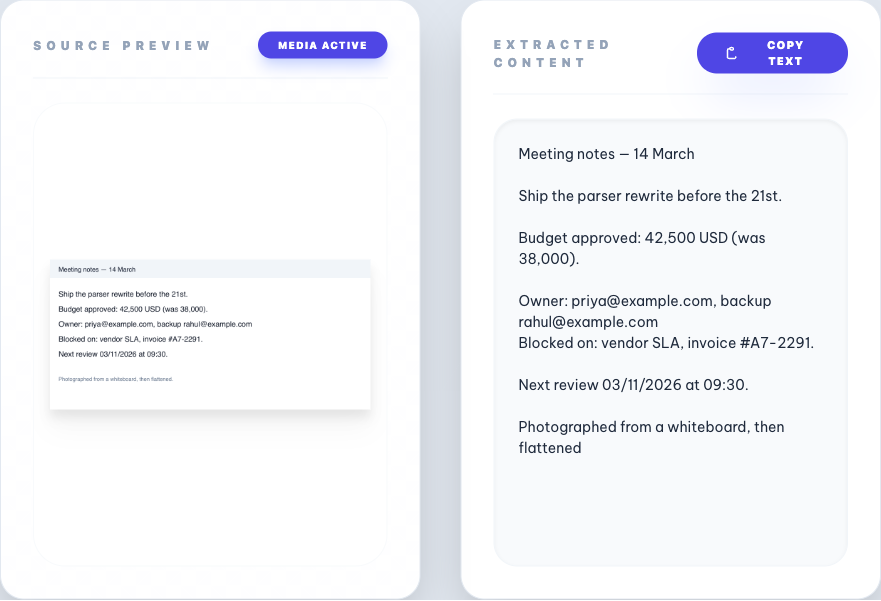
Once complete, the extracted text appears in the output panel. Review the results for accuracy. You can edit any recognition errors directly in the text area.
Step 4: Copy or Download
Use the "Copy Text" button to copy the extracted text to your clipboard, ready to paste into any application. Your recent extractions are saved in the session history for quick access.
Tips for Optimal OCR Results
While our OCR engine is highly capable, the quality of your input image significantly affects the accuracy of results. Follow these best practices:
Image Quality Matters
The single most important factor for accurate OCR is image quality. Aim for:
- High resolution: The Tesseract maintainers' image quality guide recommends a minimum of 300 DPI for scanned documents. For screenshots and photos, where DPI is meaningless, the number that matters is how many pixels tall each capital letter is — on clean text the engine is flawless from 9–14 px and only collapses below about 6, which I measured across three typefaces. Photographs need more headroom. See 12 ways to improve OCR accuracy for the full set.
- Good lighting: Even illumination without harsh shadows
- Sharp focus: Avoid blurry or motion-blurred images
- High contrast: Dark text on light background works best
Proper Orientation
Ensure your document is oriented correctly—text should be horizontal and right-side up. While OCR engines can handle some skew, perfectly straight text yields better results. If your image is rotated, use an image editor to correct it before uploading.
Minimize Background Noise
Complex backgrounds, watermarks, and decorative elements can confuse the OCR engine. When possible, use images with clean, solid backgrounds. If you're photographing a document, place it on a contrasting surface.
Font Considerations
Standard, widely-used fonts are recognized most accurately. OCR may struggle with:
- Highly decorative or script fonts
- Extremely small text (under 8pt)
- Condensed or stretched fonts
- Low-quality printed text or faded documents
Common Use Cases for OCR
Digitizing Documents
Convert paper documents, receipts, contracts, and reports into editable digital text. This is invaluable for archiving, searching, and reducing physical storage needs. Instead of retyping entire documents, simply scan and extract the text.
Extracting Text from Screenshots
Captured an interesting quote, code snippet, or information in a screenshot? Use OCR to extract the text instantly. This is particularly useful for:
- Copying text from images shared on social media
- Extracting code from tutorial screenshots
- Capturing text from video stills
- Converting infographic text to editable format
Translating Foreign Text
When traveling or reading foreign materials, OCR can extract text from signs, menus, or documents, which you can then paste into a translation service. Our multi-language support makes this process seamless.
Accessibility Applications
OCR technology helps make visual content accessible to screen readers and text-to-speech software. Converting image-based text to actual text enables people with visual impairments to access information that would otherwise be inaccessible.
Data Entry Automation
Businesses use OCR to automate data entry from forms, invoices, and business cards. Instead of manual typing, OCR extracts information quickly and accurately, reducing errors and saving time.
Privacy and Security
One of the standout features of our Image to Text tool is its privacy-first architecture. Unlike many online OCR services that upload your images to remote servers, all processing happens locally in your browser.
This means:
- Your sensitive documents never leave your device
- Complete privacy for confidential or personal information
- No risk of data breaches or unauthorized access
- Works even without an internet connection (after initial load)
This makes our tool safe for processing medical records, financial documents, personal correspondence, and any other sensitive materials.
Troubleshooting Common Issues
Poor Recognition Accuracy
If results are inaccurate, try these solutions:
- Use a higher resolution image
- Improve lighting and reduce shadows
- Ensure text is in focus and not blurry
- Crop to include only the text area
- Convert to grayscale for better contrast
Processing Takes Too Long
Large images require more processing time. To speed things up:
- Crop unnecessary parts of the image
- Resize very large images before uploading
- Close other browser tabs to free up memory
Start Extracting Text Now
Ready to convert your images to text? Head over to our Image to Text Converter and experience the power of browser-based OCR. No account needed, completely free, and 100% private.