
Complete Guide to Converting Text to Images
By Tu Luu · · · 9 min read
One of the most common questions I get about Txt2Img.click is exactly why someone would need to turn text into an image, and how to get the best results. Whether you're creating quote images for Instagram or watermarking your photography, this guide covers everything I learned while building the tool.
What is Text to Image Conversion?
Text to image conversion is the process of transforming written text into a visual graphic format, typically PNG or JPEG images. Unlike simply typing text in a word processor, text-to-image tools allow you to create standalone image files that can be shared anywhere—social media, websites, presentations, or printed materials.
The reason to do it is fixity. Real text is at the mercy of whatever renders it — a missing font substitutes, a narrow viewport reflows, a platform restyles. Once rasterised, the pixels are the pixels: your font, your line breaks, your spacing, identical on every device.
That fixity is also the cost, and it is worth being honest about it. Text inside an image cannot be selected, copied, translated, searched, resized by a reader who needs larger type, or read aloud by a screen reader. You are trading accessibility and machine-readability for visual control. That trade is right for a quote card and wrong for an article. When you do rasterise, put the same words in the alt attribute verbatim — that is the only copy a screen reader or a crawler ever sees.
Why Convert Text to Images?
There are numerous practical reasons to convert text to images. Understanding these use cases will help you get the most out of our tool:
Social Media Graphics
Visual content performs significantly better on social media platforms. Quote graphics, motivational messages, and text-based announcements catch more attention than plain text posts. Instagram, Pinterest, Facebook, and Twitter all favor image content in their algorithms, meaning your posts are more likely to be seen when they include compelling visuals.
Our text-to-image converter lets you create professional-looking quote graphics in seconds, with customizable fonts, colors, and backgrounds that match your brand aesthetic.
Watermarks and Branding
Protect your original content by adding text watermarks to your photos and graphics. With transparent background support, you can create watermark images that overlay seamlessly on any content without obscuring the underlying image.
Many photographers, artists, and content creators use text watermarks with their name, logo, or website URL to prevent unauthorized use of their work while still allowing the content to be enjoyed.
Presentations and Documents
When you need text to appear exactly the same across different computers and presentation software, converting it to an image ensures consistency. This is particularly useful for special fonts, stylized text, or multilingual content that might not display correctly on all systems.
Website Graphics
Web developers often convert text to images for hero sections, banners, and decorative headings. While this practice should be balanced with SEO considerations (search engines can't read text in images), it's perfect for artistic typography and design elements.
Batch Processing for Efficiency
Our tool supports batch processing, allowing you to convert multiple text items into individual images simultaneously. This is invaluable for creating product labels, name tags, serial numbers, or any scenario where you need many text images with the same styling but different content.
Step-by-Step Tutorial
Follow these steps to create your first text image using Txt2Img.click:
Step 1: Enter Your Text
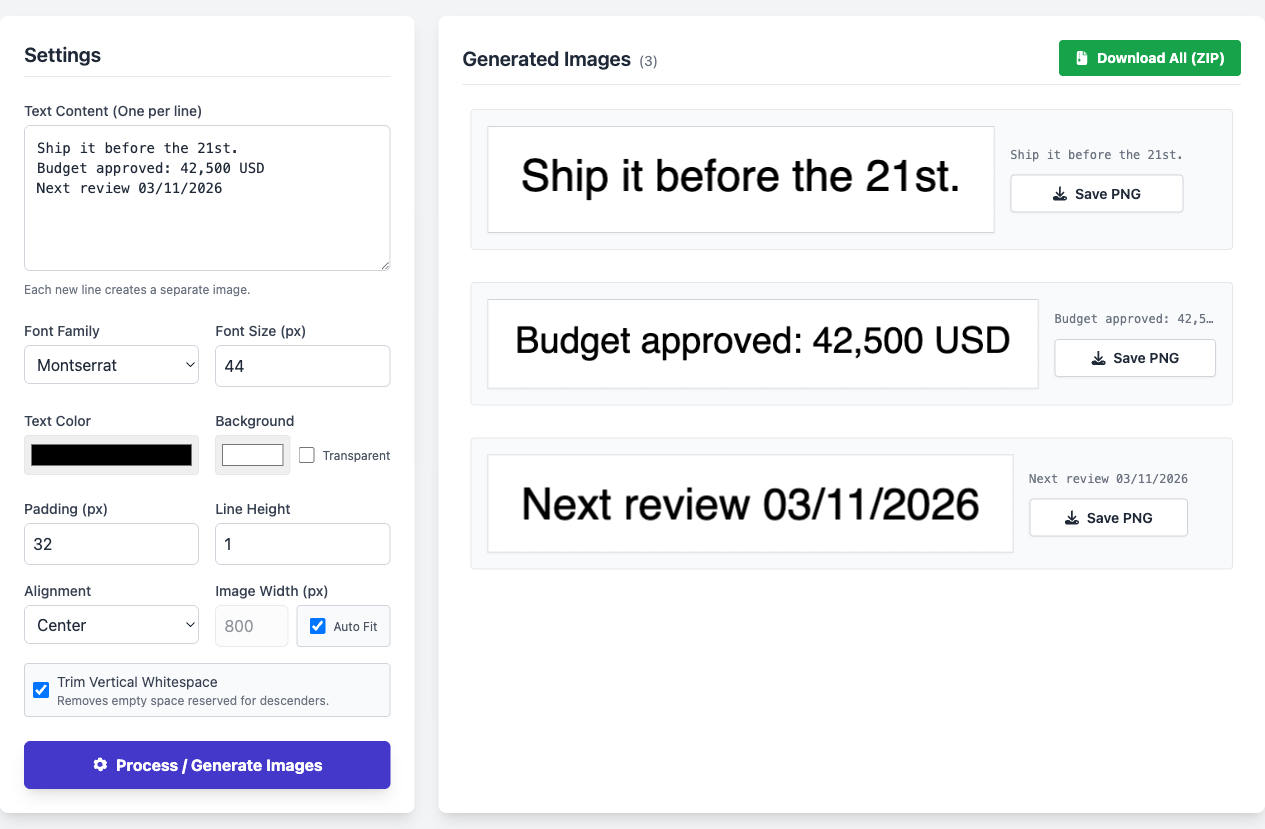
Navigate to the Text to Image converter and enter your text in the input box. You can enter multiple lines of text—each line will be converted to a separate image, perfect for batch processing.
Step 2: Customize Font Settings
Choose your font family from our selection of web-safe fonts. Adjust the font size to match your needs—larger sizes work better for social media, while smaller sizes are suitable for watermarks.
Step 3: Set Colors
Pick your text color using the color picker. For watermarks, consider using semi-transparent white or black. For social media graphics, choose colors that match your brand palette or create contrast for readability.
Step 4: Choose Background
Select a solid background color or enable transparent background for versatile use. Transparent backgrounds are saved as PNG files with alpha channels, perfect for overlays and watermarks.
Step 5: Fine-tune Layout
Adjust padding, line height, and text alignment to perfect your design. Enable auto-width to let the canvas adapt to your text length, or set a fixed width for consistent sizing.
Step 6: Generate and Download
Click "Generate" to preview your images in real-time. When satisfied, download individual images or use the "Download All as ZIP" option for batch exports.
Pro Tips for Better Results
Choosing the Right Font
Font choice dramatically affects the mood and readability of your text image. Here are some guidelines:
- Sans-serif fonts (Arial, Roboto) work best for digital screens and modern aesthetics
- Serif fonts (Times, Georgia) convey tradition and elegance
- Monospace fonts (Courier) are perfect for code snippets and technical content
- Avoid decorative fonts for long text—they reduce readability
Color Contrast Best Practices
Ensure your text is readable by maintaining sufficient contrast between text and background colors. WCAG 2.2 SC 1.4.3sets the minimum contrast ratio at 4.5:1 for normal text and 3:1 for large text (18pt / 24px and up). You can check any pair inWebAIM's contrast checker. Note that the ratio is computed from relative luminance, not hue, so two vivid colours at similar lightness — a saturated red on a saturated green, say — fail the check even though they look nothing alike. Dark text on light backgrounds or light text on dark backgrounds typically provides the best readability.
Optimal Image Sizes
Different platforms have different optimal image dimensions:
- Instagram Square: 1080 x 1080 pixels
- Twitter/X: 1200 x 675 pixels
- Facebook: 1200 x 630 pixels
- Pinterest: 1000 x 1500 pixels (vertical)
- LinkedIn: 1200 x 627 pixels
When to Use Transparent Backgrounds
Transparent backgrounds are ideal when you need to overlay your text on other images or varying backgrounds. Use them for:
- Watermarks for photos
- Logo text elements
- Text overlays in video editing
- Web graphics that need to blend with page backgrounds
Common Use Cases
Creating Quote Graphics
Quote graphics are among the most shared content on social media. To create compelling quote images:
- Keep quotes concise—aim for 1-3 sentences maximum
- Use a larger font size (48-72px) for impact
- Choose colors that evoke the quote's emotion
- Add the author's name in a smaller, contrasting style
- Leave adequate padding for visual breathing room
Making Product Labels
Our batch processing feature excels at creating multiple product labels. Simply enter each label text on a new line, configure your styling once, and generate all labels simultaneously with consistent formatting.
Educational Materials
Teachers and educators can use text-to-image conversion for flashcards, vocabulary lists, and visual learning aids. The consistent formatting ensures professional-looking materials for classroom use.
Privacy and Security
One of the key advantages of Txt2Img.click is our privacy-first approach. All text-to-image conversion happens locally in your browser. Your text is never uploaded to our servers, making it safe to convert sensitive or confidential information without privacy concerns.
This client-side processing also means faster results—there's no network latency or server queue to wait for. Your images are generated instantly on your own device.
Ready to Create?
Now that you understand the fundamentals of text-to-image conversion, it's time to put your knowledge into practice. Head over to our Text to Image Converter and start creating stunning visual content today. Remember, there's no account required, and you can generate unlimited images completely free.